

Introduction
Imagine receiving an email from your principal asking you to review an important document. It looks familiar, the message sounds urgent, and the sender's name is someone you recognize. Without thinking twice, you click the link and sign in.
But what if that email wasn't really from your principal?
Email scams are becoming increasingly convincing, and schools are frequent targets because teachers and administrators regularly exchange student information, documents, schedules, and other sensitive data.
A single click can put you and the school at risk. The good news is that recognizing a few common warning signs and following simple security habits can make a big difference.
Here's how to protect your Gmail account, identify suspicious emails, and respond safely when something doesn't look right.
How to Protect Your Gmail Account from Hackers
Preventing an email attack starts with a few everyday habits. Here are some simple ways to keep your school account safer.
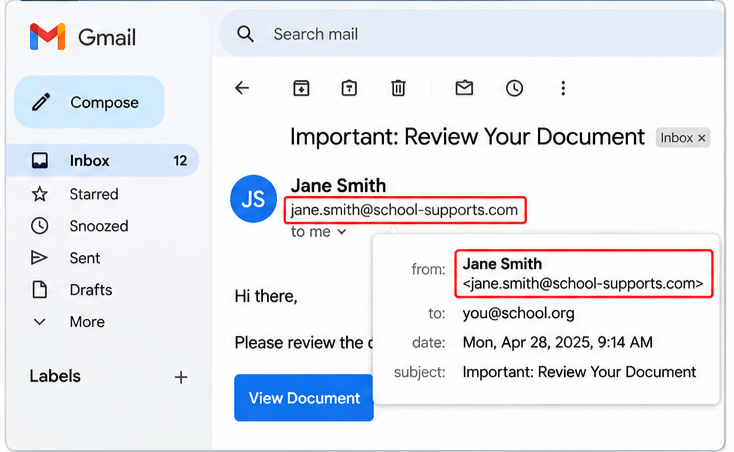
1. Check the Sender's Actual Email Address
Don't rely on the display name alone. A scammer can make an email appear to come from your principal, coworker, or school administrator.
In Gmail, click the sender's name or the small arrow next to the recipient details to view the full email address. Look for misspellings, unfamiliar domains, or addresses that don't match the person you're expecting.
2. Avoid Signing In Through Email Links
If an email asks you to open a Google Doc, listen to a voicemail, or verify your account, don't automatically click its link.
Instead, open a new browser tab and type the official website address yourself, such as mail.google.com or drive.google.com. Check whether the document or notification is actually there.
3. Verify Unusual Requests
Be cautious if someone claiming to be a principal, administrator, or coworker suddenly requests gift cards, money transfers, personal phone numbers, or confidential student information.
If the request seems unusual or urgent, verify it through a separate communication method, such as a phone call or an in-person conversation.
4. Use Strong, Unique Passwords
Create a password or passphrase with at least 14 characters. Avoid using easily guessed information, and never reuse your school password on shopping websites, personal accounts, or other services.
5. Enable 2-Step Verification
2-Step Verification adds another layer of protection to your Google account. Even if someone obtains your password, they may still need an additional verification method to sign in.
Never approve an unexpected Google sign-in prompt or share verification codes with anyone.
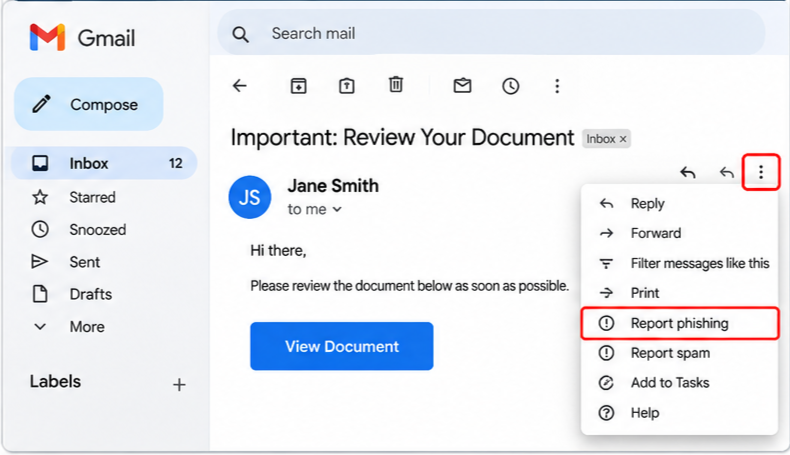
6. Report Suspicious Emails
If you identify a phishing message, report it through Gmail instead of simply deleting it.
Open the email, click the three-dot menu next to Reply, and select Report phishing. This helps Google identify and filter similar suspicious messages.
How to Recognize a Suspicious Email
Not every suspicious email looks dangerous. Some are designed to look like ordinary workplace communication.
Before opening a link or attachment, look for these warning signs.
1. Unfamiliar or Slightly Altered Sender Addresses
An email may use a familiar person's name but come from an unrelated address. Scammers may also use domains that look almost identical to your school's official domain.
2. Unexpected Links or Attachments
Be careful with messages asking you to review a document, download an attachment, update a staff schedule, or sign in to view shared files, especially when you weren't expecting them.
On a computer, hover over a link without clicking it to preview its destination. If the address looks unfamiliar or doesn't match the message, don't open it.
3. Urgent or Unusual Requests
Messages containing phrases such as "Act immediately," "Your account will be suspended," or "I need this completed right away" are designed to pressure you into acting without checking.
Scammers may also impersonate school administrators and request confidential information or financial assistance.
4. Unexpected Google Security Alerts
Pay attention to notifications about new sign-ins, unfamiliar devices, password changes, or account recovery updates.
If you receive an alert you weren't expecting, don't use the links in the email. Visit your Google Account directly and review your security activity.
5. Signs That an Account May Already Be Compromised
Sometimes, the warning signs appear after an account has been accessed by someone else.
Watch for:
Coworkers or parents asking about emails you never sent.
Unfamiliar messages in your Sent or Trash folders.
Unexpected password or account security changes.
Unknown forwarding addresses or filters in Gmail.
Messages from a coworker's genuine school email address that seem unusual or out of character.
6. When a Coworker's Account May Be Compromised
Sometimes, a suspicious email may come from a coworker's actual school email address. If they send an unexpected document link, an unusual request, or a message that doesn't sound like them, their account may have been compromised.
Don't assume it's safe just because you recognize the sender. Contact the coworker through another trusted method to verify the message.
Remember: a message from a familiar email address isn't automatically safe. If something feels unusual, verify it before responding.
What to Do When You Receive a Suspicious Email
If an email seems suspicious, don't panic. A few simple steps can help prevent a potential security issue.
1. Don't Click, Download, or Reply
Avoid opening links or attachments, downloading files, or responding to the sender. Even replying can confirm that your email address is active.
2. Verify the Sender
If the email claims to come from someone at your school, contact that person through a known phone number or another trusted communication channel. Don't use the contact information provided in the suspicious email.
3. Report the Email in Gmail
Open the message, click the three-dot menu next to Reply, and select Report phishing. If it's unwanted spam rather than a phishing attempt, use Report spam.
4. Notify Your School's IT Team
If the message appears to target multiple staff members or impersonates someone within the school, inform your IT administrator. They can investigate and help prevent others from falling for the same scam.
5. Stay Alert for Further Activity
If you notice unfamiliar account activity or suspect someone has accessed your Gmail account, don't ignore it. Contact your school IT team immediately and follow the appropriate account recovery steps.
Final Thoughts: Pause Before You Click
Email is an essential part of everyday school communication, but it can also be an entry point for cybercriminals.
You don't need to be a cybersecurity expert to protect yourself. Taking a moment to check the sender, question unexpected requests, and avoid unfamiliar links can help protect your account and your school's information.
Remember: When an email creates urgency, take a moment to verify it before taking action.
Already clicked a suspicious link or entered your Google password on a fake sign-in page? Don't wait. Read our next guide, Google Email Emergency Recovery Checklist: Steps to Take After a Phishing Click, for the steps to secure your account and limit potential damage.