

Introduction
It happens more easily than you might think. You receive an email that appears to come from Google, your principal, or a coworker. You click a link, land on what looks like a familiar Google sign-in page, and enter your password.
A few moments later, you realize something isn't right.
If you've clicked a phishing link or entered your Google account credentials on a suspicious website, don't panic. Acting quickly can help protect your account, personal information, and school data.
Whether you use Gmail for everyday school communication or manage important documents through Google Drive, here's a step-by-step checklist to help secure your account.
Your Google Account Recovery Checklist
Step 1: Change Your Google Password Immediately
If you entered your password on a suspicious website, change it as soon as possible.
Open a new browser tab.
Type myaccount.google.com directly into the address bar.
Sign in to your Google Account if you still have access.
Navigate to Security and select Password.
Create a new, strong, unique password that you haven't used on any other website.
Avoid using the same password across multiple accounts.
Can't sign in? If someone has already changed your password or recovery information, visit Google's official account recovery page or contact your IT team for assistance.
https://accounts.google.com/signin/recovery
Step 2: Review Recent Security Activity
Changing your password is important, but you should also check whether someone else still has access to your account.
Check your Google Account for any unfamiliar sign-ins or security changes.
Visit myaccount.google.com.
Open Security.
Find the Recent security events section.
Select Review security events.
Look for unfamiliar sign-ins or account changes. If you find activity you didn't perform, follow Google's instructions to secure your account.
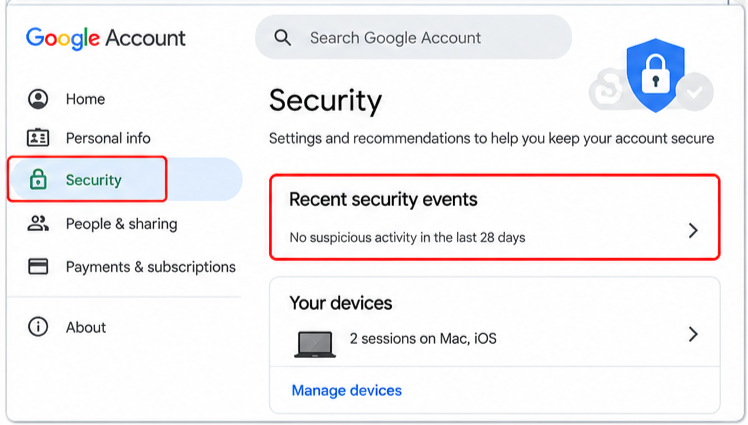
Step 3: Review and Sign Out of Unfamiliar Devices
Check which devices are currently signed in to your Google Account.
Visit myaccount.google.com.
Open Security.
Find the Your devices section.
Select Manage devices.
Review the listed devices and sign out of any sessions you don't recognize.
If you see multiple unfamiliar sessions, review them carefully and sign out where necessary.
Step 4: Enable or Verify 2-Step Verification
2-Step Verification adds an additional layer of security to your Google Account.
Open your Google Account settings.
Navigate to Security.
Find 2-Step Verification.
Turn it on if it isn't already enabled.
Review your available verification methods and remove any unfamiliar phone numbers or devices.
You can use Google Prompts, an authenticator app, or another supported verification method.
Never approve a sign-in request that you didn't initiate.
Step 5: Remove Suspicious Third-Party App Access
Sometimes, phishing attacks attempt to obtain permission to access your Google Account through third-party applications.
Review which apps and services have access to your account.
Visit myaccount.google.com.
Open Security.
Find the section for third-party apps and services connected to your account.
Review the applications and services listed.
Remove access from any applications or services you don't recognize or no longer trust.
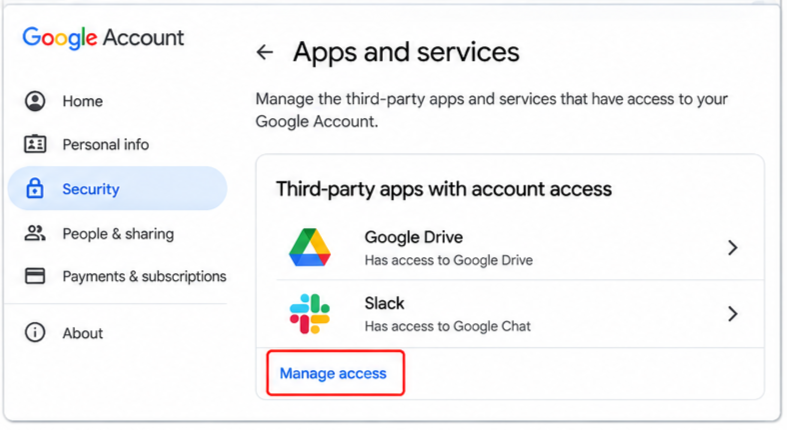
Be careful not to remove legitimate applications your school relies on. If you're using a school-managed Google Account, contact your IT administrator before making changes.
Step 6: Change Reused Passwords on Other Accounts
If you used the compromised Google password on other websites or applications, those accounts could also be at risk.
Change the passwords for any accounts where you reused the same or a similar password.
Pay particular attention to:
Personal email accounts.
Banking and financial accounts.
School management or grading platforms.
Other websites where you saved or reused your Google password.
Use a different, unique password for every important account.
Step 7: Check Gmail Forwarding and Filter Settings
Hackers sometimes create hidden email rules to redirect incoming messages, archive important emails, or send copies to another address without your knowledge.
After securing your account, review these settings.
Check forwarding settings:
Open Gmail.
Click the Settings gear icon.
Select See all settings.
Open Forwarding and POP/IMAP.
Look for unfamiliar forwarding addresses or settings.
Check filters:
Remain in Gmail Settings.
Open Filters and Blocked Addresses.
Review the existing filters.
Remove any unfamiliar rules you didn't create.
If you find suspicious changes, notify your school's IT administrator.
Step 8: Notify Your School's IT Administrator
If your school Google account may have been compromised, contact your school or Diocese IT administrator immediately.
Let them know:
When you clicked the suspicious link.
Whether you entered your password or other information.
Whether you have already changed your password.
Whether you noticed unfamiliar devices, messages, or account settings.
Your IT team can investigate the account through the Google Admin console, review suspicious activity, terminate access where necessary, and check whether school information may have been exposed.
If the compromised account sent suspicious emails to parents, staff, or other contacts, inform your principal and IT team so they can warn recipients not to click those links.
Important: If you're using a school-managed Google Workspace account, some security settings and recovery actions may be controlled by your school's administrator. Your IT team can help secure the account, review suspicious activity, and take additional steps to protect school data.
What If You Only Clicked the Link but Didn't Enter Your Password?
Clicking a suspicious link doesn't automatically mean your Google Account has been compromised. However, it is important to take precautions.
Close the suspicious webpage immediately.
Don't enter any personal information or download anything from the page.
If a file was downloaded, don't open it. Contact your IT team.
Review your Google Account's recent security activity.
If you suspect malware or unauthorized access, contact your IT administrator for further assistance.
If you entered your password, follow the recovery checklist above immediately.
Final Thoughts: Act Quickly, Stay Protected
A phishing attack can happen to anyone, even someone who is careful with email. The important thing is knowing what to do next.
Changing your password, reviewing connected devices, checking account permissions, and notifying your school's IT team can help limit the damage.
Don't feel embarrassed about reporting a suspicious click. The sooner your IT team knows about a potential compromise, the sooner they can investigate and help protect others.
Once your account is secure, take the next step toward prevention. Read our guide, Look Before You Click: A Teacher's Everyday Guide to Spotting Gmail Scams, to learn how to recognize suspicious emails and avoid similar attacks in the future.